
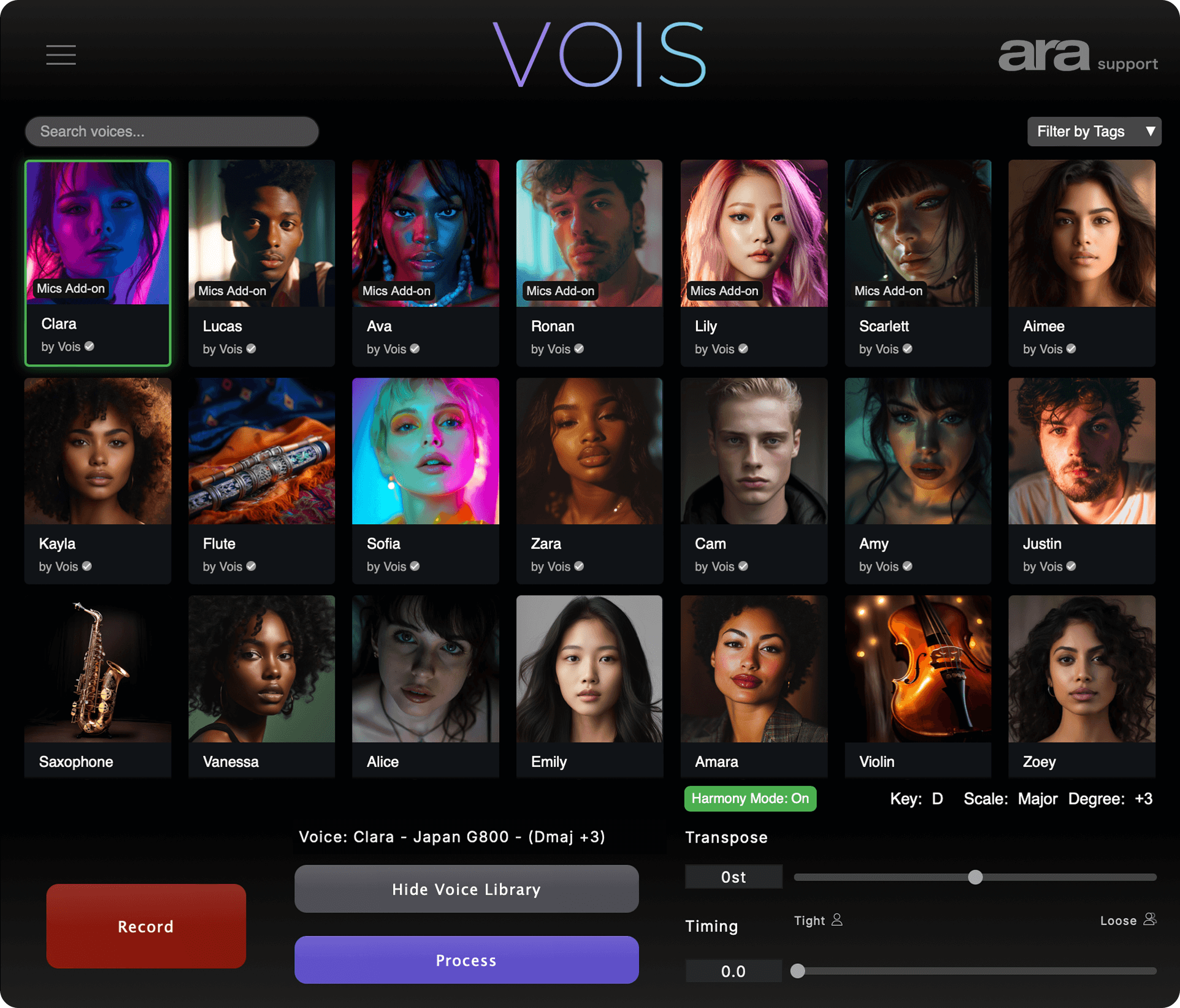
Find a sound in the library.
A sung topline can become a different vocal character. A recorded melody can become an instrument. Songwriters can audition a new direction for a demo, while producers can explore vocal textures and supporting layers in an existing session.
Your recording supplies the performance. Listen to the result in the context of your track and choose the voice that suits the part.
Build the vocals around your lead.
Generate doubles of your own voice, build harmony parts or assemble a choir of different singers. Choose voices and musical intervals, shape the stereo spread and blend the result with your lead. Advanced modes depend on your account access, with processing costs shown before you start.
Clone a voice. Keep your performance.
Use a short, clear singing reference to explore a vocal sound with a separate recorded take. Choose the reference section and audition it before processing. Start with your own voice or a voice you have explicit permission to clone and reuse.
Clone requires eligible account access. You must have the necessary rights to the reference recording and consent from its voice owner. VOIS does not grant commercial-use rights for Clone. You are responsible for the permissions needed for your uploads and intended use of the generated audio. Review the voice and recording rights guidance.
A practical first session
- Open the standalone app, or load the VOIS plugin in a compatible DAW.
- Start with a clean, dry recording. Avoid reverb, distortion, and background noise in the source.
- Record or import your performance in the app, or capture it from your DAW.
- Listen to the library’s recorded examples and choose a voice or instrument.
- Hear a short preview if your account is eligible, then review the cost and process your take. Compare the result with the original and bring it into your production.
Processing requires an internet connection. The examples on this website are recorded demos; processing your own audio happens in VOIS.
Hear it before you commit.
Generate a short preview from your own vocal and compare it with the original before processing the full take. Keep your source recording and current result while you explore a new direction. Preview access and daily allowances depend on your account.
Listen for articulation, sustained notes, breath detail and how the sound sits in your mix. Compare at similar listening levels so a louder result does not decide for you.
For a commercial release, review voice library rights and commercial use. For costs, see processing credits and add-on access.
Keep scratch ideas in key.
In the standalone app, record over a backing track and find its key and tempo on supported devices. Set your vocal tuning to fit the song, explore melodies and keep scratch takes in key. Manual key and tempo settings remain available when automatic detection is not.
Give your vocals space, then build the arrangement.
Shape a vocal with studio-style reverb and delay, balance it against your backing track, and move or trim clips as the idea grows. Save and reopen your session, then export the arrangement as WAV to share or continue in another app.
Backing-track arrangement, source tuning and these effect controls are standalone tools. In a plugin session, your DAW supplies transport, arrangement and effects.
Does VOIS use AI?
Yes. VOIS uses machine learning to change the voice or instrument character of recorded audio. You supply the performance and choose the sound.